
Proxmox Host iGPU Drivers & Modifications
Finish and make sure the Container doesn’t start after creation.
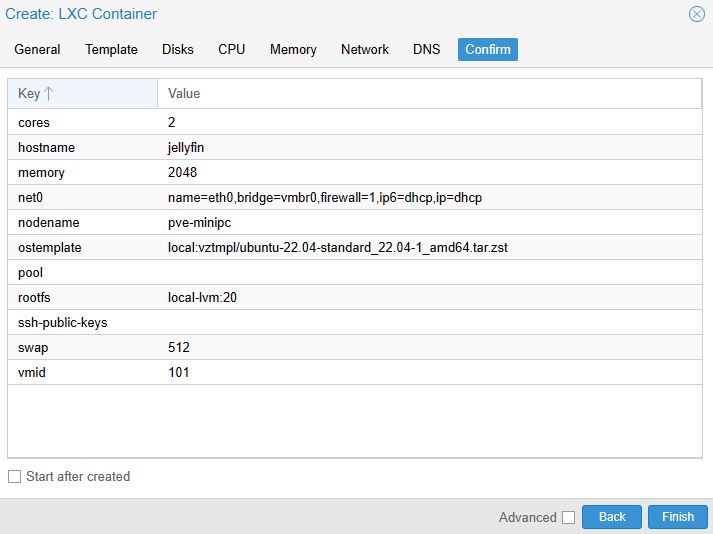
The container for Jellyfin on Proxmox is configured, but we need to make a few host changes first. This is going to be the most difficult part as the drivers you need to install will depend on the type of CPU and iGPU you’re using.
For the most part, you just have to ensure that the drivers are installed and if they are, you’ll have access to your iGPU for Jellyfin on Proxmox. We’ll install a package that will tell you if it is or isn’t working before you proceed.
1. Access the Shell on your Proxmox host and run the commands below to install a few of the packages we’ll need:
Add block to other drivers and leave only yours.
nano /etc/modprobe.d/blacklist.confand fill the below inside the file blacklist.conf
blacklist amdgpu
blacklist radeon
blacklist nouveau
blacklist nvidia\*
#blacklist i915
#blacklist iHD
Save Ctrl+x and Enter
Add driver to your Proxmox host
nano /etc/modprobe.d/i915.confand fill the below inside the file i915.conf
options i915 enable_guc=3Save Ctrl+x and Enter and REBOOT Proxomox host
Install the below GPU driver packages
vainfo: This package will test to ensure the GPU drivers are installed and functioning properly.
apt install vainfo -yIntel Drivers: First, we’ll add the non-free repository to add the Intel drivers needed, then install the Intel iGPU drivers. Keep in mind that if you aren’t using an Intel CPU (or even possibly if you’re using an older/newer Intel CPU than I am), this step might be different for you.
apt install software-properties-common -y && apt install intel-media-va-driver-non-free -y2. Now that both are installed, run the command below to confirm the GPU drivers are installed properly. If they are, you should see a bunch of supported profiles and entrypoints.
Confirm the GPU drivers are installed properly.
vainfoIf you find this helpful or not please leave a comment.
Ins0mniA
No comments to display
No comments to display