# Fixing DNS Leakage on Windows 10-11
#### Fixing DNS Leakage on Windows
To fix dns leakage on windows 10-11 we must edit the following Registry Entries:
- **HKEY\_LOCAL\_MACHINE\\Software\\Policies\\Microsoft\\WindowsNT\\DNSClient**
- **HKEY\_LOCAL\_MACHINE\\SYSTEM\\CurrentControlSet\\Services\\Dnscache\\Parameters**
##### Disabling Smart Multi-Homed Name Resolution
Open REGEDIT and go to the following key path:
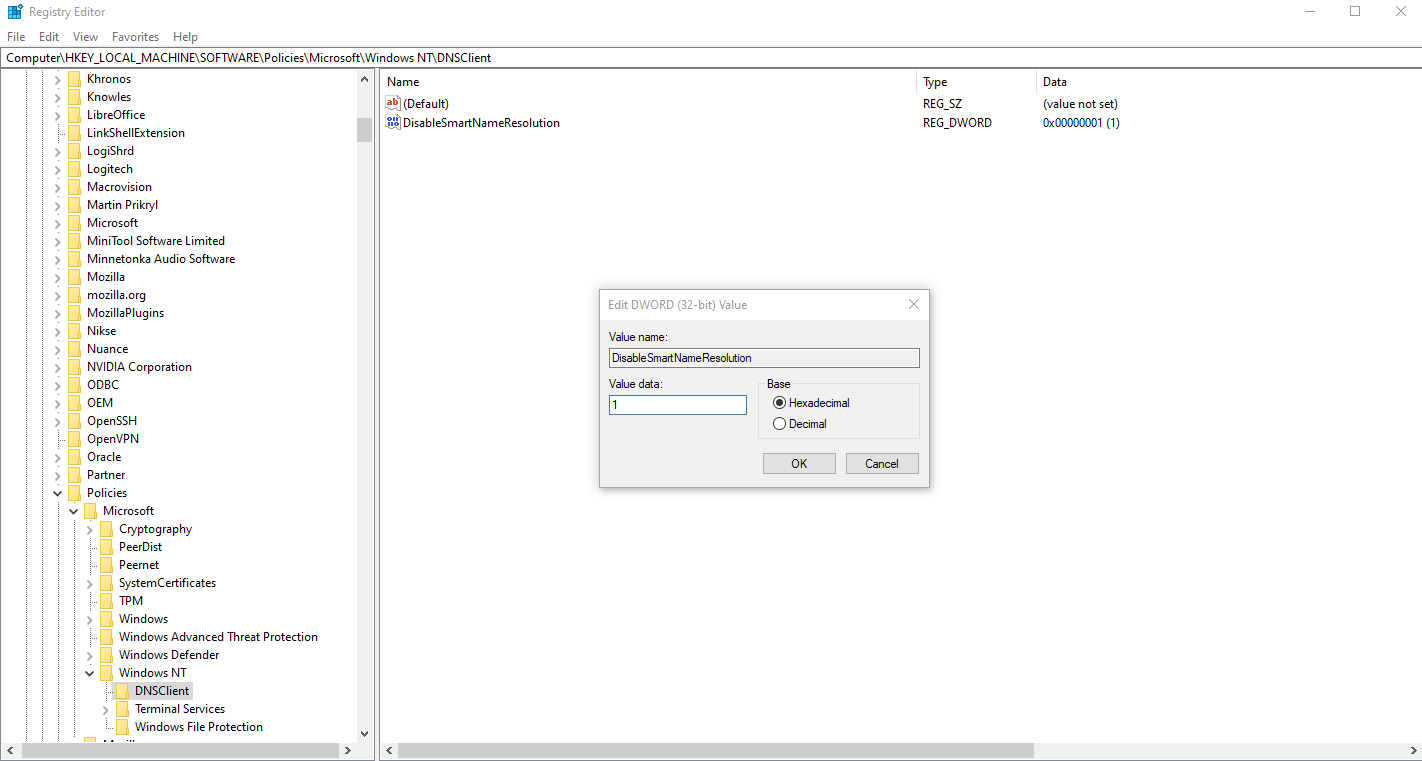
**Computer\\HKEY\_LOCAL\_MACHINE\\Software\\Policies\\Microsoft\\Windows NT\\DNSClient**
If the folder/keypath does not exist, create it inside the Windows NT Key.
(Right-click on Windows NT → New → Key)
Once that is done create a DWORD (32-bit Value) with the following data:
- **Value: DisableSmartNameResolution**
- **Data:** 1
[](https://docs.greenhome.stream/uploads/images/gallery/2025-04/10-win-dnsleak-fix-2.png)
##### Disabling Parallel A and AAAA Resolution
Open REGEDIT and go to the following key path:
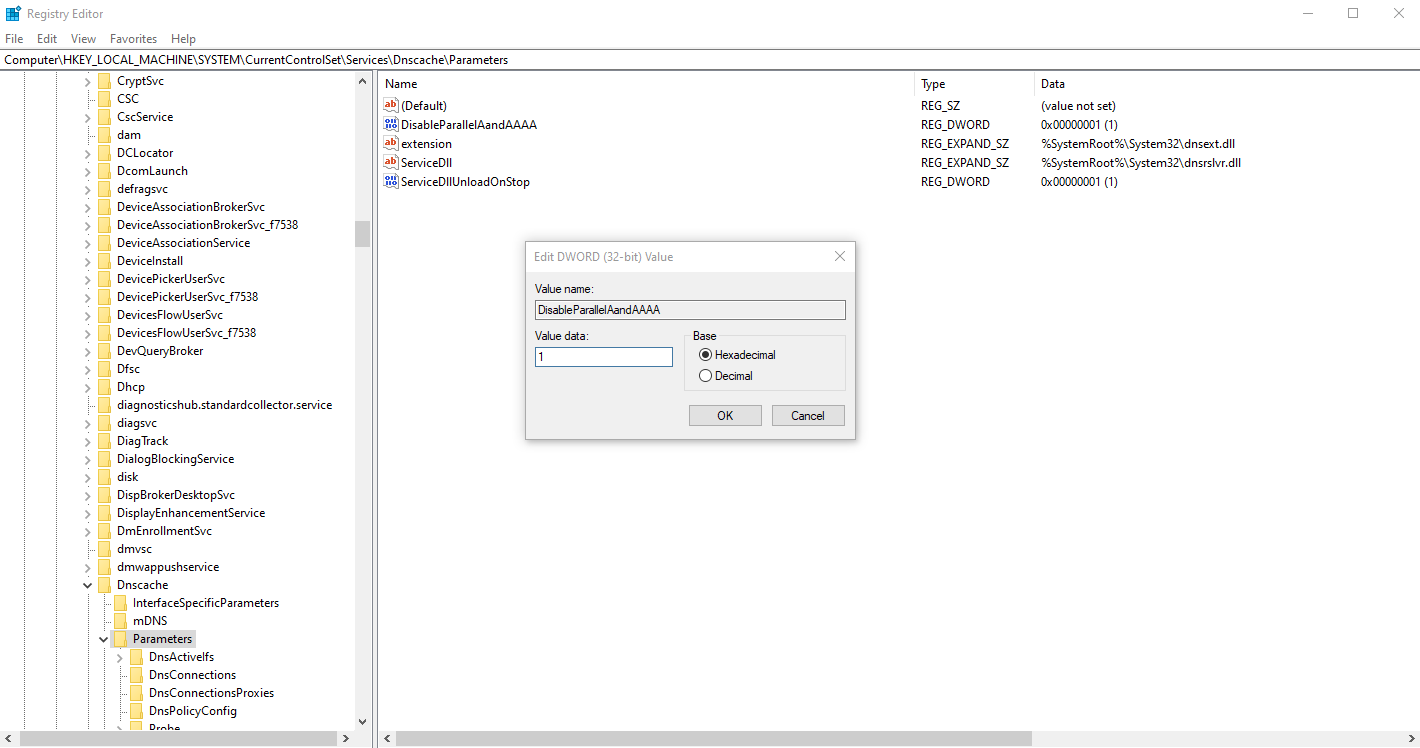
**Computer\\HKEY\_LOCAL\_MACHINE\\SYSTEM\\CurrentControlSet\\Services\\Dnscache\\Parameters**
Create a DWORD (32-bit Value) with the following data:
- **Value:** **DisableParallelAandAAAA**
- **Data:** **1**
[](https://docs.greenhome.stream/uploads/images/gallery/2025-04/10-win-dnsleak-fix-1.png)
##### Download the reg file FIX DNS Leak
Attachment Link [Win\_Fix\_DNS\_Leak.reg](https://docs.greenhome.stream/attachments/1 "Win_Fix_DNS_Leak")
#### Fix Routing Metric Windows DNS resolution via VPN connection
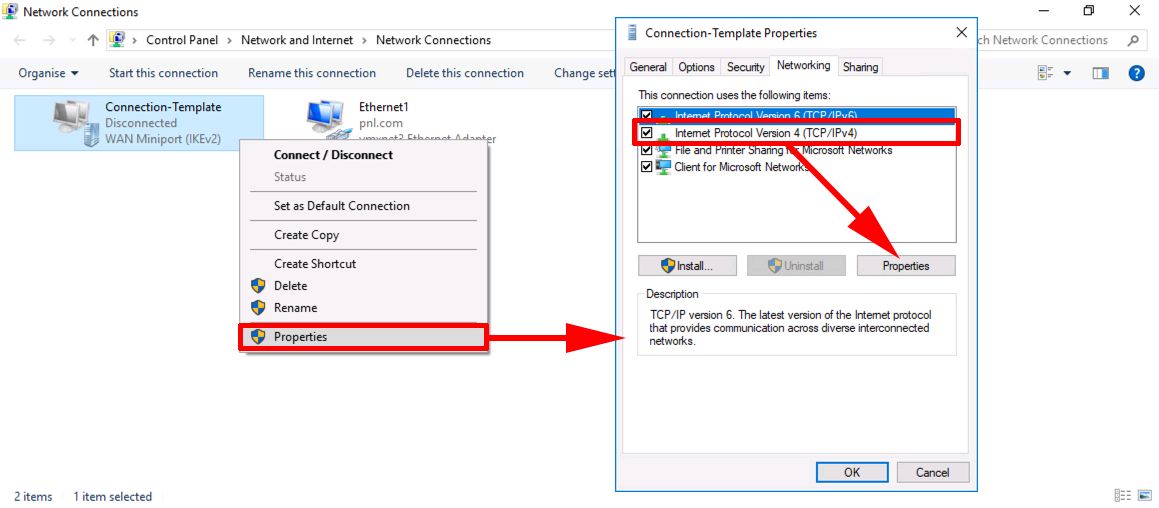
Start > **ncpa.cpl** {enter} > Right click your NIC > Properties > Internet Protocol Version 4 > Properties.
##### Fix Routing Metric for VPV Adapter
The metric for the VPN Adapter MUST be **LOWER** than the metric of your Physical Adapter.
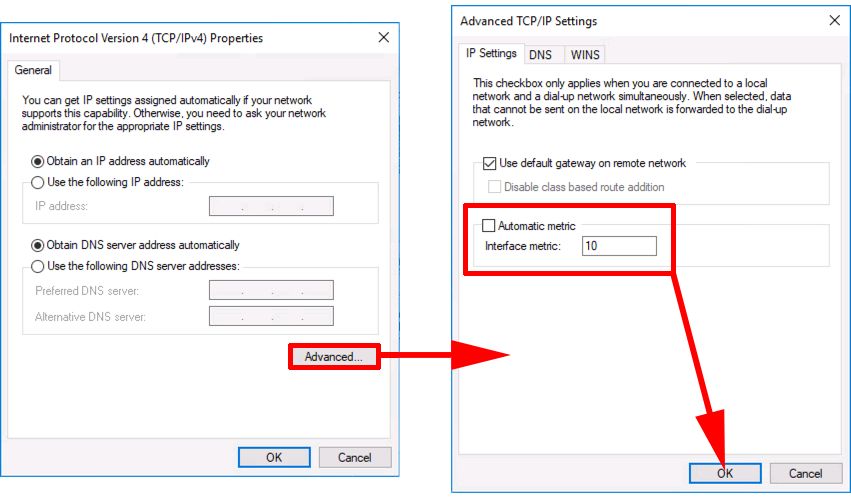
**On VPN Adapter set the Metric Value to 10.**
[](https://docs.greenhome.stream/uploads/images/gallery/2025-04/metric-vpn-connection-ipv4.jpg)
[](https://docs.greenhome.stream/uploads/images/gallery/2025-04/vpn-connection-metric.jpg)
On that same Properties page, double click IPv6 > Advanced > Uncheck Automatic Metric > **Enter 10** for interface metric > OK > OK
##### Fix Routing Metric for Physical Adapter
The metric for the Physical Adapter MUST be **HIGER** than the metric of your VPN Adapter.
**On Physical Adapter set the Metric Value to 120.**
[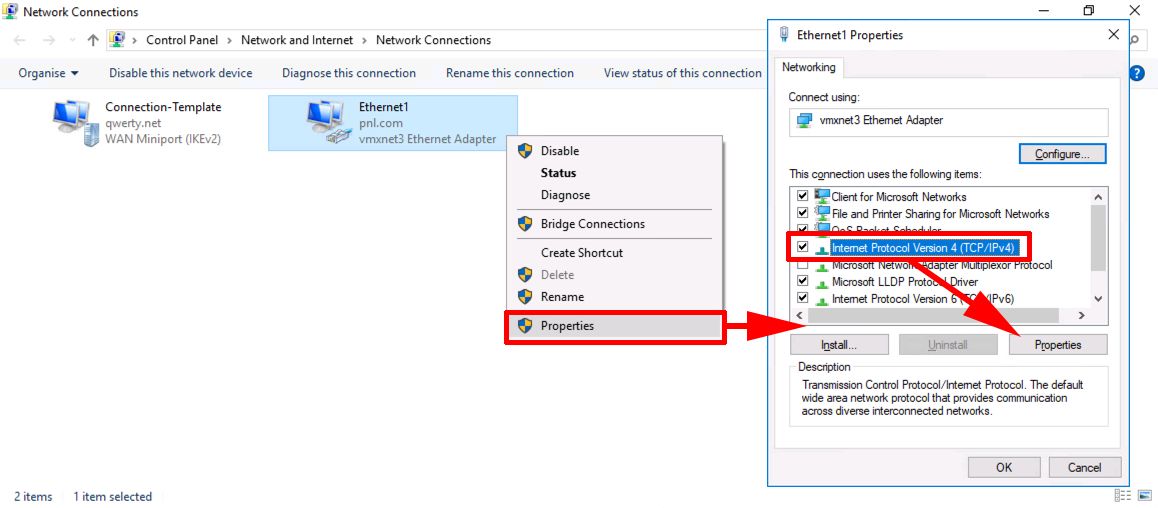](https://docs.greenhome.stream/uploads/images/gallery/2025-04/metric-physical-nic-properties.jpg)
[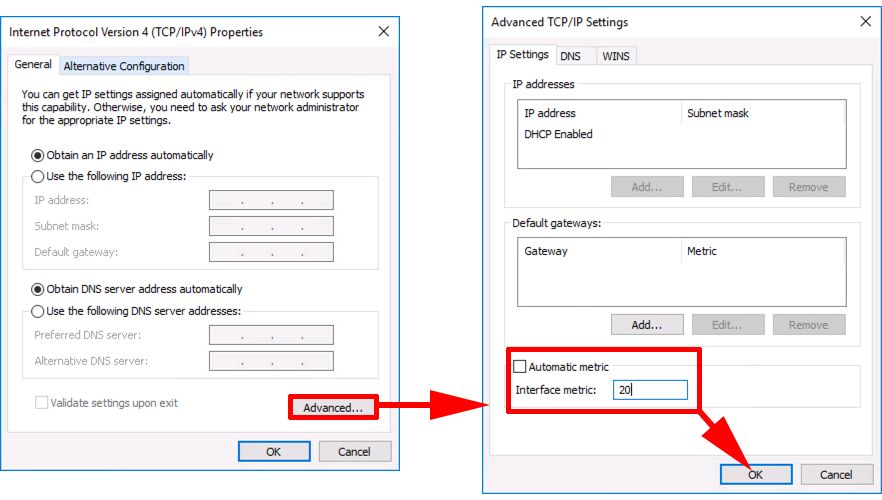](https://docs.greenhome.stream/uploads/images/gallery/2025-04/physical-nic-metric.jpg)
On that same Properties page, double click IPv6 > Advanced > Uncheck Automatic Metric > **Enter 120** for interface metric > OK > OK
#### How to check if you are affected by DNS Leaks
Checking for DNS leaks is quite a simple task. The following steps will guide you to make a simple DNS leak test using a free online service test. To begin with, connect your computer to the VPN.
Next, visit the below websites to check.
- [dnsleaktest.com](https://dnsleaktest.com/ "dnsleaktest.com")
- [ipleak.net](https://ipleak.net/ "ipleak.net")
- [browserleaks.com](https://browserleaks.com/dns "browserleaks.com")
- [dnsleak.com](https://dnsleak.com/ "dnsleak.com")
Your system is leaking DNS if you see the server information related to your ISP. Also, your system is affected by DNS leaks if you see any lists that are not directed under the VPN service.